
Background Eraser
handyCloset Inc.Photography
4.727.61K Reviews
- Version
- Varies With Device
- Installs
- 100.00M
- Age Rating
- Teen
Screenshots
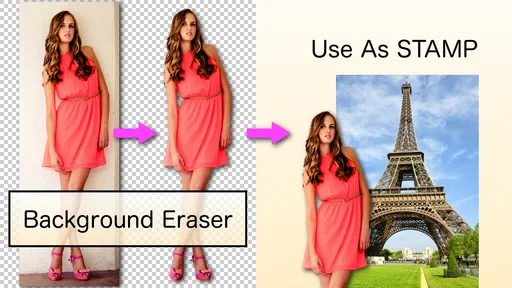
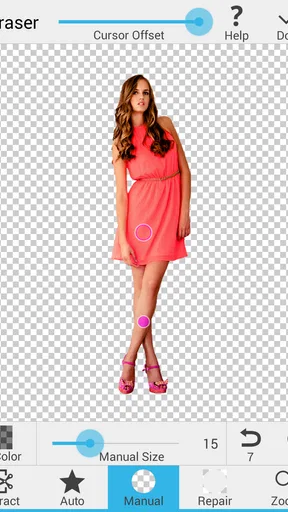
Our Review of Background Eraser
 Analysis by Appyee
I find a background-removal app most useful when I need one clean cutout quickly, not when I want to rebuild an entire photo. Background Eraser focuses on that job: removing the surroundings from a picture and letting me refine the selection by hand. It is a free photography app from handyCloset Inc., and its appeal is easy to understand if you often prepare images for profile pictures, simple graphics, or small product listings.
That focused workflow also sets a fair expectation. The app can help separate a subject from its background, but a careful result still depends on the source image and how much edge cleanup I’m willing to do. I wouldn’t treat every automatic cutout as finished artwork; I see it as a useful starting point that can save time on straightforward photos.
When the connection matters
Background editing is the main event here, so the key question for me is whether the selected image and the finished cutout move smoothly through the task. I avoid assuming that every part of the process works without a connection: network behavior can depend on the device, app version, and the particular action being used. If I’m preparing something that needs to be shared promptly, I leave time to check that the image has actually saved before moving on.
That small habit matters more than it sounds. A cutout can look ready on screen, yet the useful outcome is the saved image in my gallery or the destination I choose. When I’m working somewhere with an unreliable signal, I’d rather finish the edit and verify the saved result before closing the app than discover later that I need to repeat a selection.
Useful on a phone, with a little patience
The app suits quick mobile edits because I can work from a picture already on my device or capture a new one, then make corrections on the same screen. For example, I might take a photo of a handmade item near a busy kitchen counter, remove the distracting surroundings, and keep the object for a simple listing image. The convenience is real, though I’d still choose a clean, evenly lit source photo; a sharply defined subject is easier to isolate than one that blends into its background.
Fine edges are where I slow down. Hair, thin straps, plant leaves, and transparent or reflective objects can be difficult to separate cleanly, even when automatic removal gets most of the area right. I zoom in and use the manual eraser sparingly, then restore any pieces of the subject that were removed by mistake. Working in small passes is less frustrating than trying to correct a large section with one broad swipe.
What Makes Background Eraser Stand Out?
The first thing I noticed about Background Eraser is its simplicity. No frills, no unnecessary buttons – just pure, straightforward functionality. The app’s interface is intuitive, making it super easy to jump right in without feeling overwhelmed. I mean, who has time to read lengthy tutorials these days?
So, here’s the deal: once you upload your photo, the app automatically detects and removes the background. It’s like magic! The accuracy is pretty impressive, even with tricky edges like hair or intricate patterns. And if the auto-detect isn’t quite perfect, you’ve got manual tools to fine-tune the details.
Features You'll Love
Let’s dive into some features that really caught my eye:
- Auto Background Removal: A single tap and voila, your background disappears. It’s almost like having a personal photo editor in your pocket.
- Manual Eraser: For those times when you need to get precise, you can manually erase parts of the image. The zoom and brush size adjustments make it a breeze.
- Restore Tool: Accidentally erased too much? No worries, the restore tool lets you bring back those parts with ease.
- Save in High Resolution: No one likes a pixelated image. Thankfully, this app saves your edits in high resolution, maintaining the quality of your photo.
Using the App: A Quick Walkthrough
Getting started with Background Eraser is as easy as pie. Once you open the app, you’re greeted with a clean home screen where you can either snap a new photo or choose an existing one from your gallery. After that, the app does its magic with the auto-erase feature.
If you’re a perfectionist like me, you’ll appreciate the manual editing tools. It’s like having a mini Photoshop in your hand, but without the steep learning curve. You can zoom in super close for those pesky details, and the adjustable brush size gives you the control to make precise edits.
Once you’re happy with your edit, you can save the image directly to your device or share it on your favorite social media platforms. The high-resolution options ensure your images look stunning everywhere.
Working around mistakes and limits
My practical approach is to keep the original photo untouched and treat the cutout as a separate result. That gives me a fallback if I erase too much or decide the crop needs another attempt. I also check the outline against a plain, contrasting background when possible: tiny leftover patches or rough edges are easier to spot when they don’t disappear into a busy preview.
There is a trade-off between speed and control. Automatic removal is convenient for a clear subject against a distinct backdrop, but it can make a wrong guess where colors meet or the subject has fine details. Manual correction offers more say over the edge, yet it takes concentration on a small screen. If I need a polished composite with layers, shadows, precise color adjustments, and text, I would use a fuller photo editor instead of expecting this focused tool to do every job.
For a one-off image, I also consider whether removing the background is actually necessary. Cropping tighter or choosing a less cluttered photo may be faster and look more natural. This app is most worthwhile when I need the subject isolated for reuse, rather than simply wanting a generally better photograph.
Choosing the right workflow
Compared with a general-purpose photo editor, this app is easier to approach when the only task is separating a subject from its surroundings. A broad editor usually gives me more options for retouching and composition, but its extra controls can slow down a simple cutout. Compared with a quick crop tool, background removal preserves the subject while discarding the scene behind it, which is useful for product images and basic visual assets. Neither route is automatically best: a crop is enough when the unwanted area is at the edge, while an editor with layers is preferable when the subject needs to sit convincingly in a new scene.
A realistic example is preparing a picture of a secondhand lamp for a listing. I’d start with a photo where the lamp is clearly separated from the wall, let automatic removal do the broad work, then zoom in around the shade and cord. I’d restore any part of the cord that was clipped, inspect the base for leftover background, and save only after the silhouette looks believable. If the cord disappears into a dark tabletop, I’d retake the picture rather than spend too long trying to rescue an unclear boundary.
For people making occasional social posts, profile cutouts, or simple catalog images, the focused tools are approachable. A seller with many products may appreciate the quick starting point but should expect to review each edge rather than assume every result is publication-ready. Someone who regularly makes complex collages, needs detailed retouching, or depends on consistent batch processing will probably be happier with a more comprehensive editor.
Storage, sharing, and sensible expectations
When I’m keeping data use in mind, I plan the edit around the original image already on my device and avoid unnecessary repeated sharing or re-importing. I check the final file where it was saved and only send it onward when I’m satisfied with the cutout. That is a simple way to avoid duplicate versions and accidental uploads, especially when I’m editing over a mobile connection. I also treat sharing as a separate choice from editing: a finished image does not need to be posted just because it is ready.
The app is free, has a Teen content rating, and has been available since Mar 29, 2014. Its average rating is 4.7 from around 987,000 ratings, with around 28,000 written reviews and over 100 million installs. Those figures suggest broad familiarity, but they don’t guarantee that every photo will produce a clean edge; the image itself still matters. I’d judge it by how well it handles the kind of pictures I actually edit.
If a process stalls or a result looks wrong, I first check whether I’m looking at the intended source image and whether the selection needs manual correction. I keep the original available, undo or restore mistakes where possible, and save a fresh result once the outline is right. If sharing is the part that fails, I verify the saved copy before trying again. This calm, stepwise recovery is more reliable than repeatedly tapping through the whole workflow.
Final Thoughts: Is It Worth It?
If you’re looking for a no-nonsense way to remove backgrounds from your photos, Background Eraser is definitely worth checking out. It’s perfect for anyone who wants to create professional-looking images without spending hours on editing. Whether you’re a social media influencer, a small business owner, or just someone who loves taking photos, this app is a fantastic tool to have on hand.
So, what are you waiting for? Give it a spin and see how it transforms your photos. You might just wonder how you ever lived without it!
My connectivity verdict
I’d recommend it for quick, focused cutouts when I can inspect the edges and confirm the saved result, rather than for a workflow that must be uninterrupted or automatically polished. Connection conditions are worth considering around sharing and any step that depends on them, but the practical standard is simple: finish the edit, verify the file, and only then move on. For a straightforward subject and a modest editing goal, that is a manageable routine; for complicated composites or consistently demanding output, a full-featured editor is the better choice.
Verdict
Strengths of Background Eraser
- Easy to use interface for beginners.
- High precision in object selection.
- Supports multiple image formats.
- Fast processing time for edits.
- Offers useful editing tools beyond erasing.
Limitations of Background Eraser
- Limited free version features.
- Contains ads that can be intrusive.
- Occasional crashes on older devices.
- No batch processing option available.
- Requires internet for advanced features.
Similar Picks in This Category
View All
Google Photos
Google LLC4.4

Gallery
Google LLC4.2

Picsart AI Photo Editor, Video
PicsArt, Inc.3.9

B612 AI Photo&Video Editor
SNOW Corporation4.1

BeautyPlus-Selfie Photo Editor
PIXOCIAL TECHNOLOGY (SINGAPORE) PTE. LTD.4.5

Remini - AI Photo Enhancer
Bending Spoons4.1
Frequently Asked Questions
How does the Background Eraser app work?
The Background Eraser app uses advanced algorithms to automatically detect and remove the background from images. It allows users to manually adjust the edges to ensure precision. The app typically supports both automatic and manual modes, offering flexibility for users who want a quick solution or a more refined result.
Can I restore an erased background if I make a mistake?
Yes, the Background Eraser app usually includes an undo feature that allows you to revert any mistakes made during the editing process. Additionally, many versions offer a history tool that lets you step back through previous actions, ensuring you can correct errors without starting over.
What formats does the Background Eraser app support?
The Background Eraser app generally supports popular image formats such as JPEG, PNG, and GIF. This makes it versatile for a variety of uses, whether you’re editing photos for social media, creating marketing materials, or preparing images for other creative projects.
Is the Background Eraser app user-friendly for beginners?
Absolutely! The Background Eraser app is designed with an intuitive interface that’s accessible for beginners. It often includes tutorials or guides to help new users navigate through the features, ensuring they can effectively use the app without prior experience in photo editing.
Are there any in-app purchases or ads in the Background Eraser app?
Many versions of the Background Eraser app offer a free version supported by ads, with an option to upgrade to an ad-free experience through in-app purchases. The premium version often includes additional features and tools, enhancing the app’s functionality for more advanced editing needs.
